

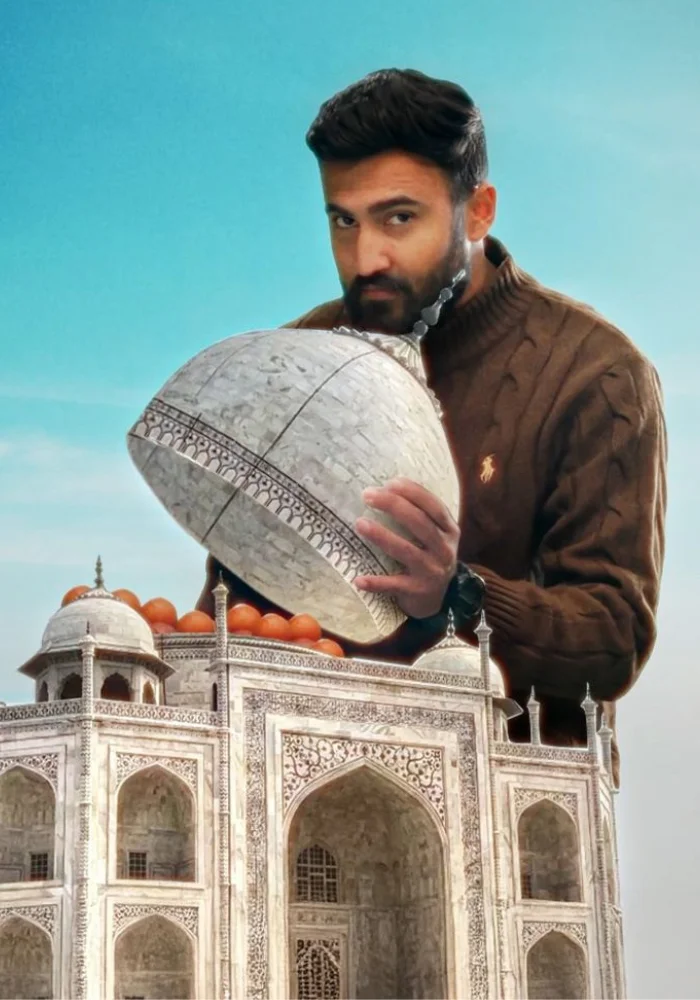

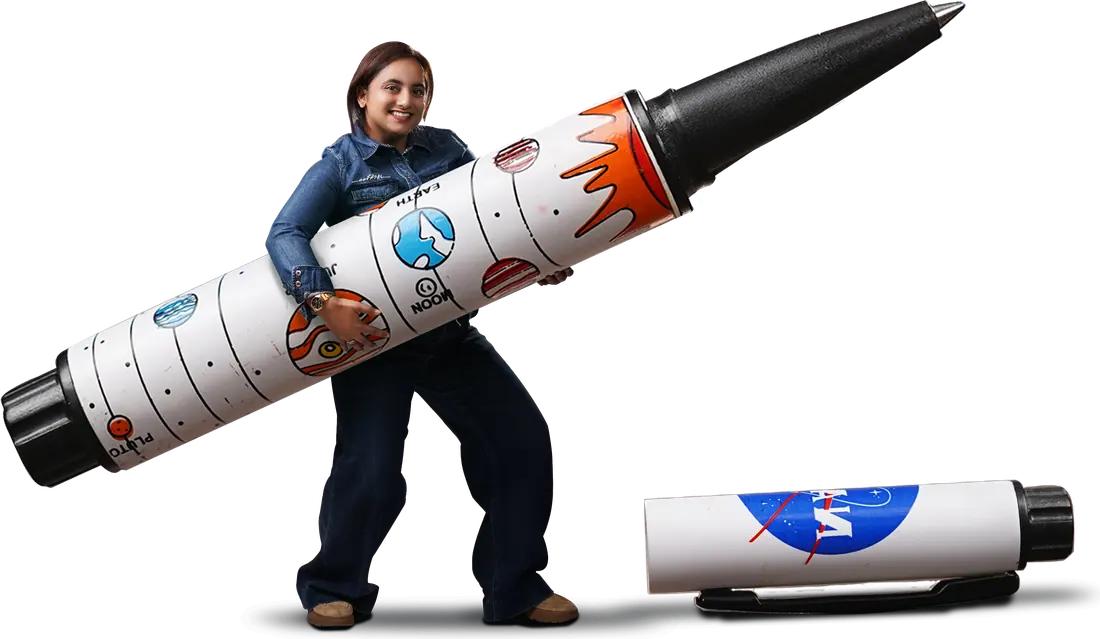
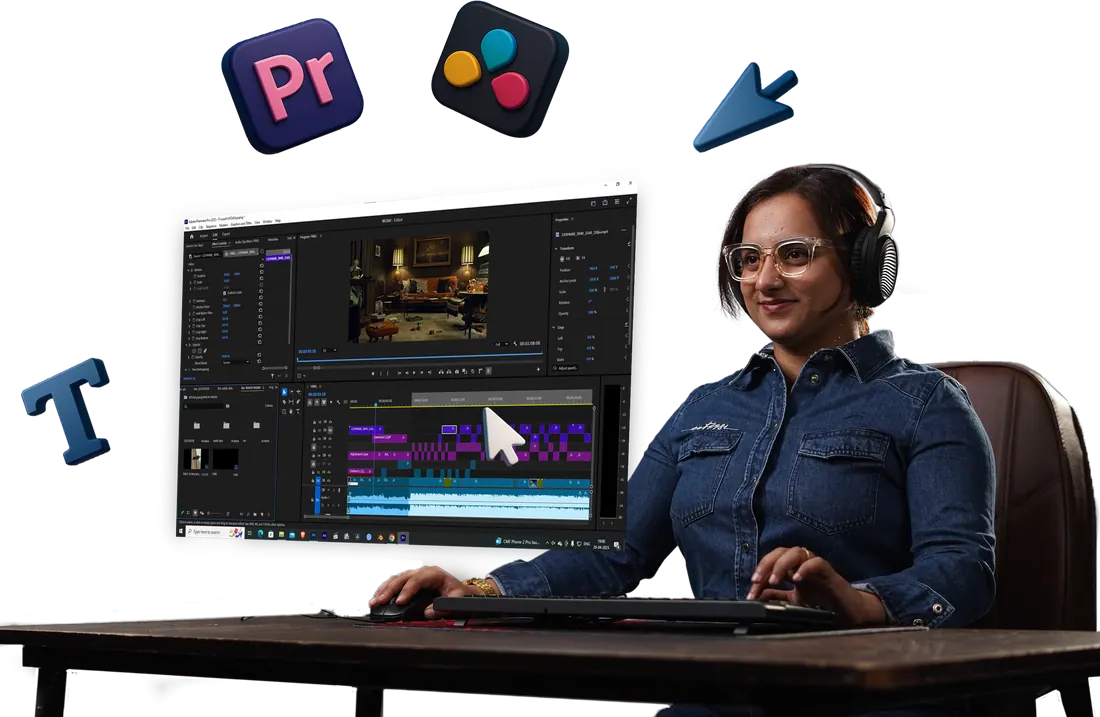
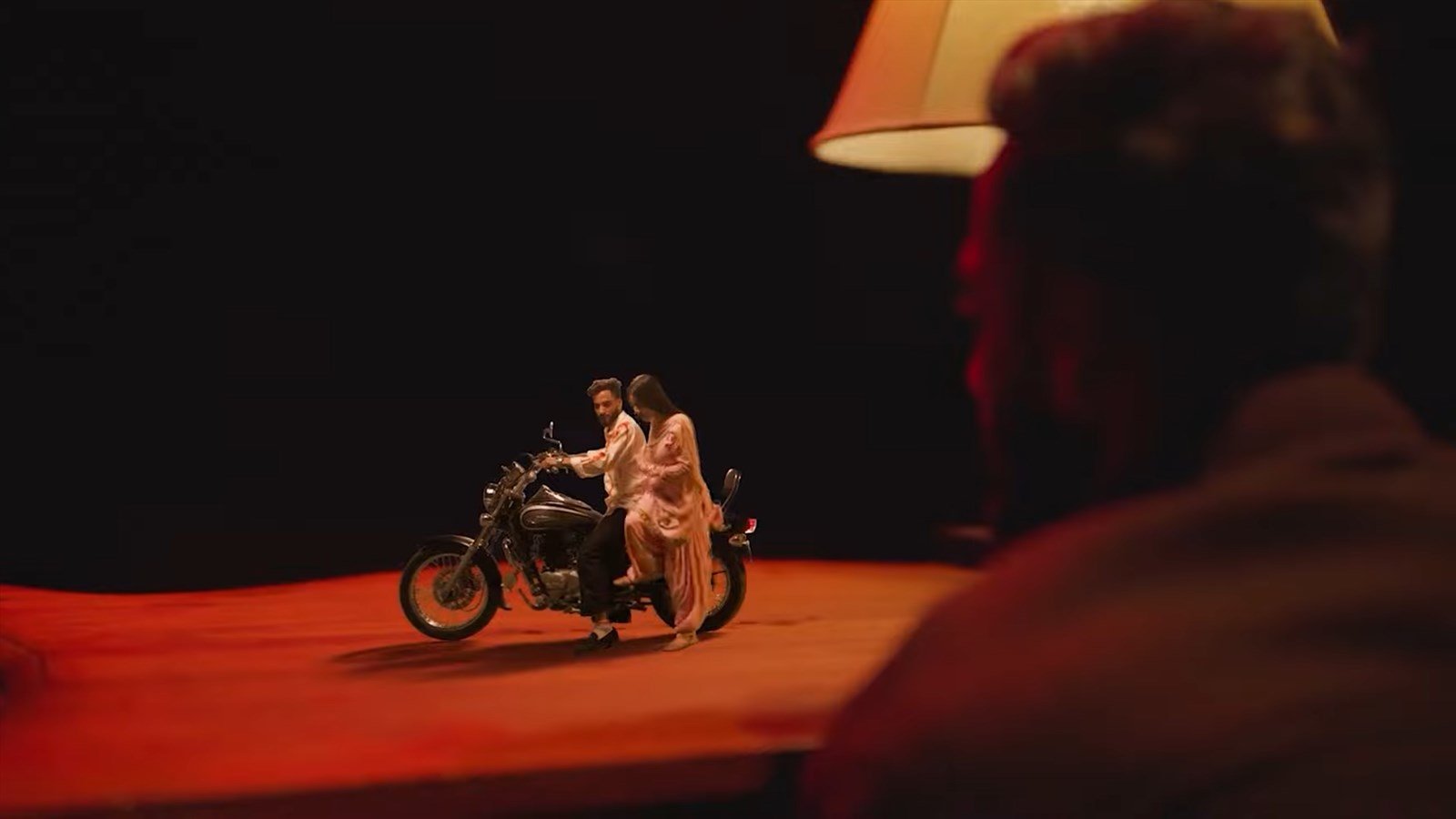
A person no taller than a coffee mug, walking across your desk. Or a giant standing taller than a three-storey building. It looks like magic, and in our tutorial it is presented by a “magician” on purpose. But the trick is simple, and once you know it you will spot it in films everywhere.
Here is how to make the miniature effect in After Effects (the “tiny person” effect), plus its opposite, the giant. Both use the same three ideas: a clean key, matching perspective, and believable shadows.
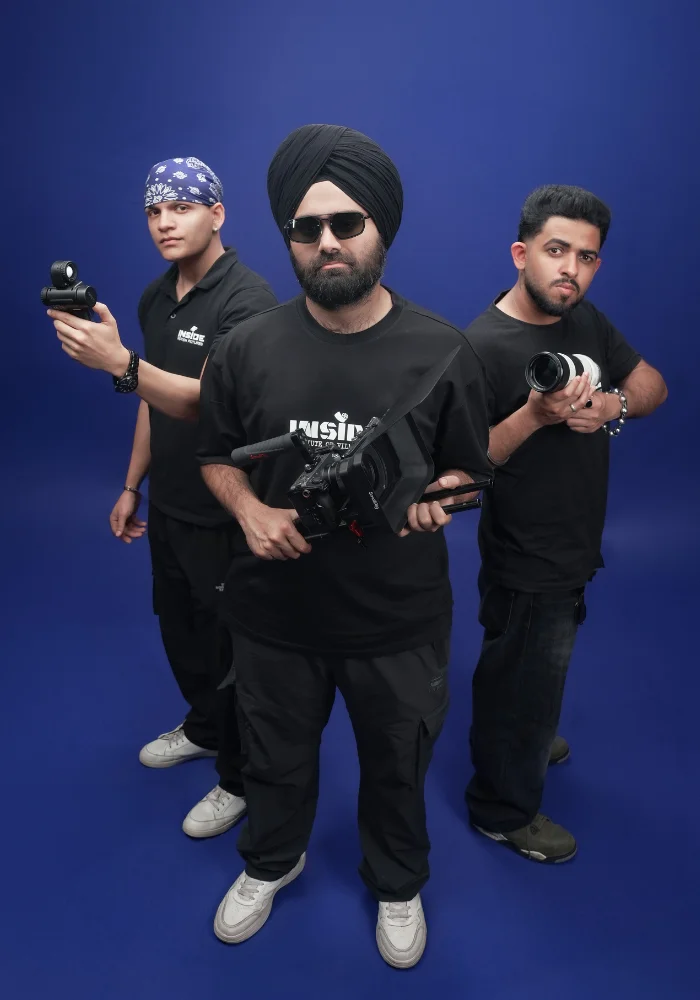
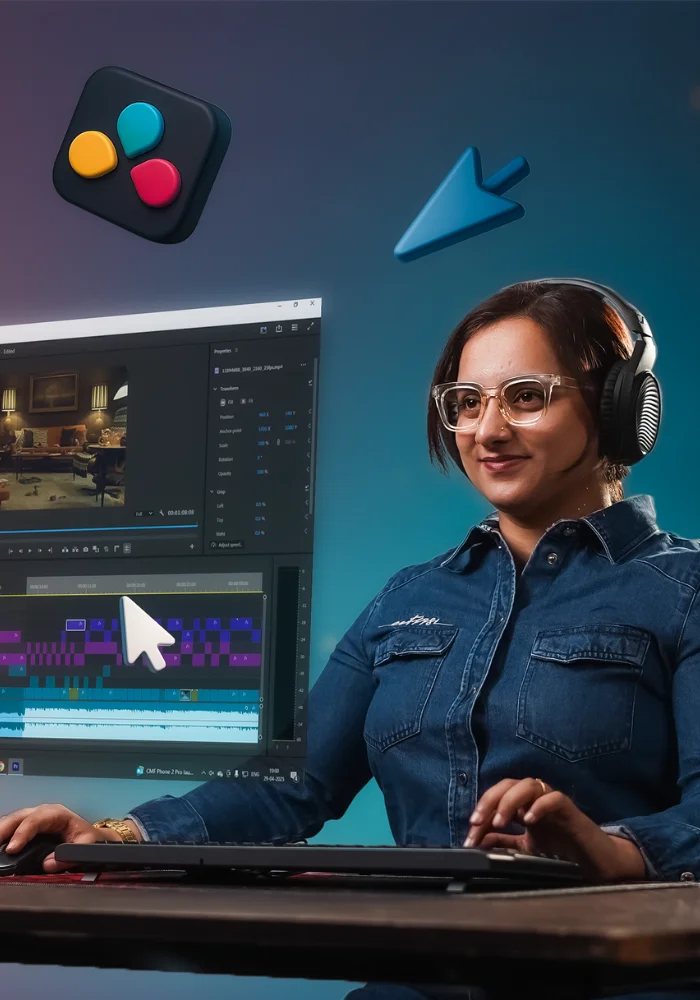
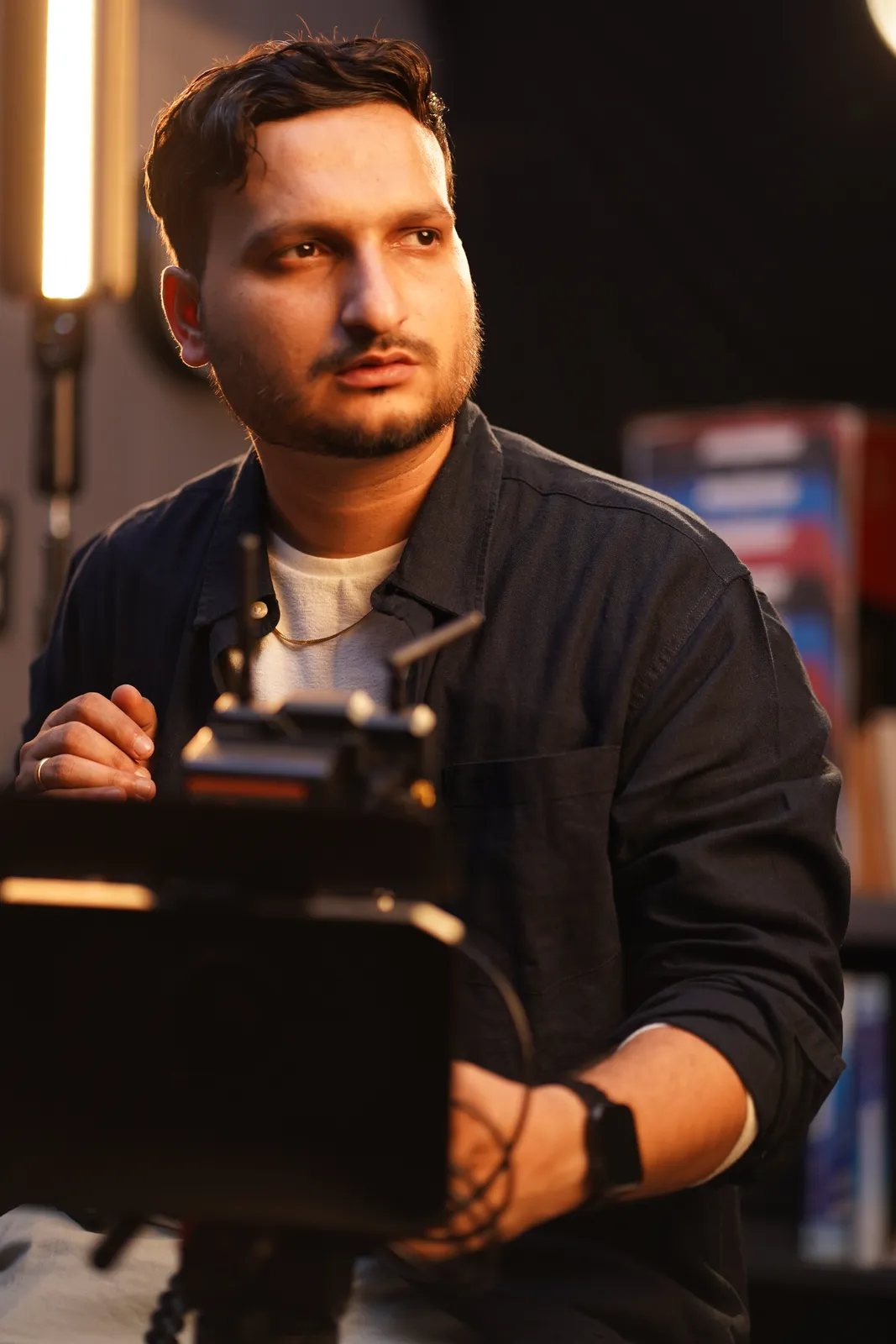
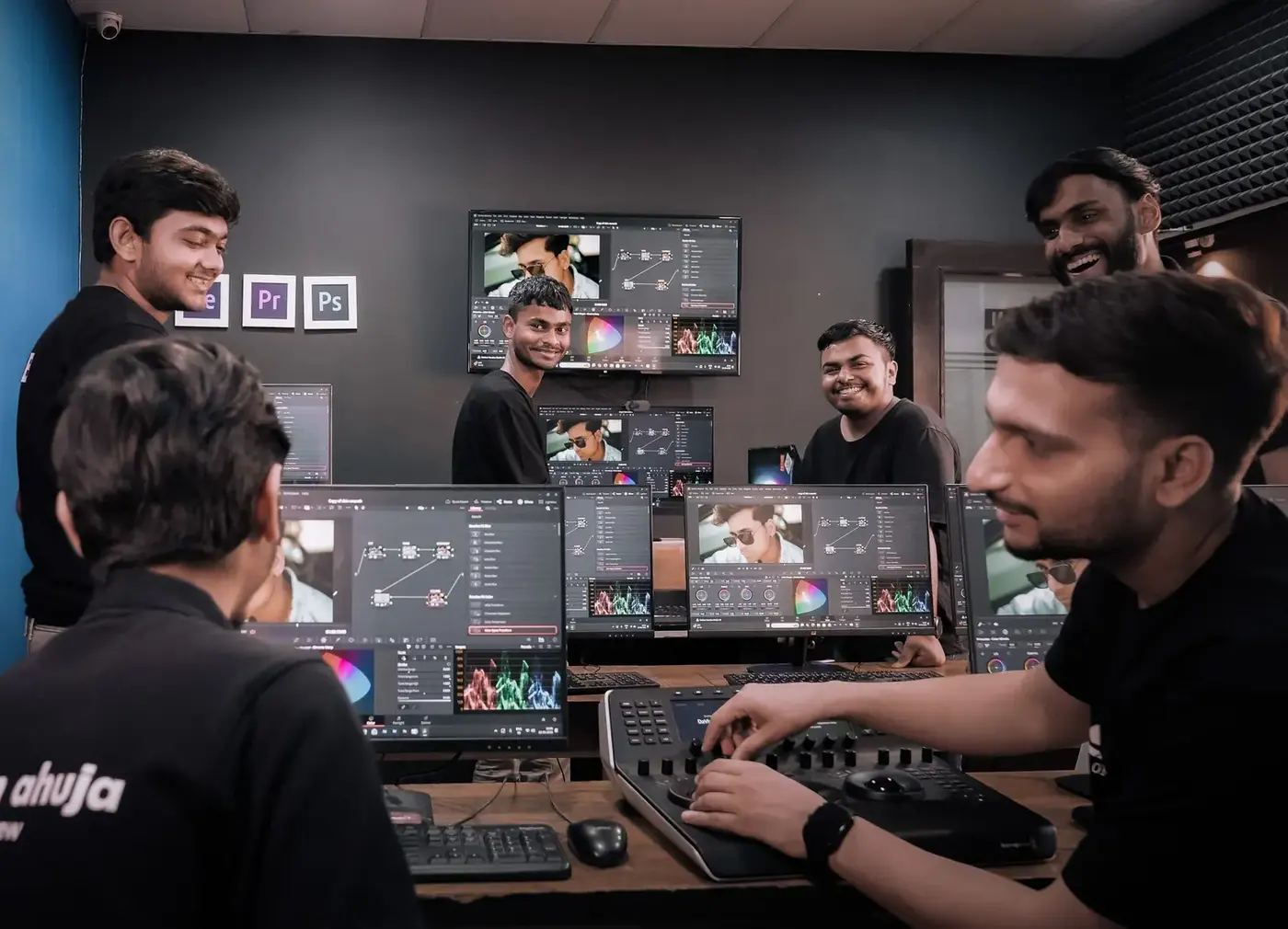
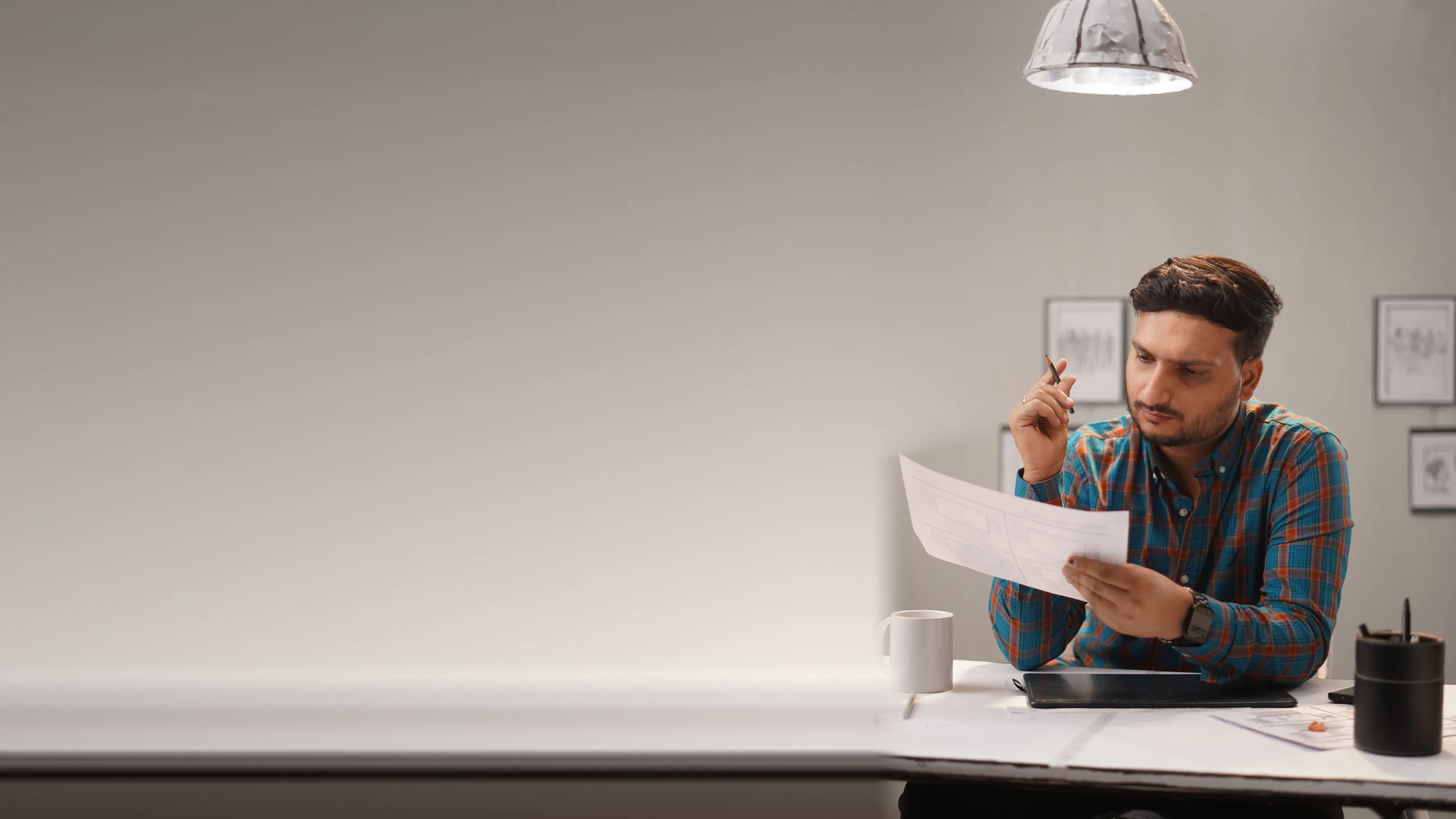
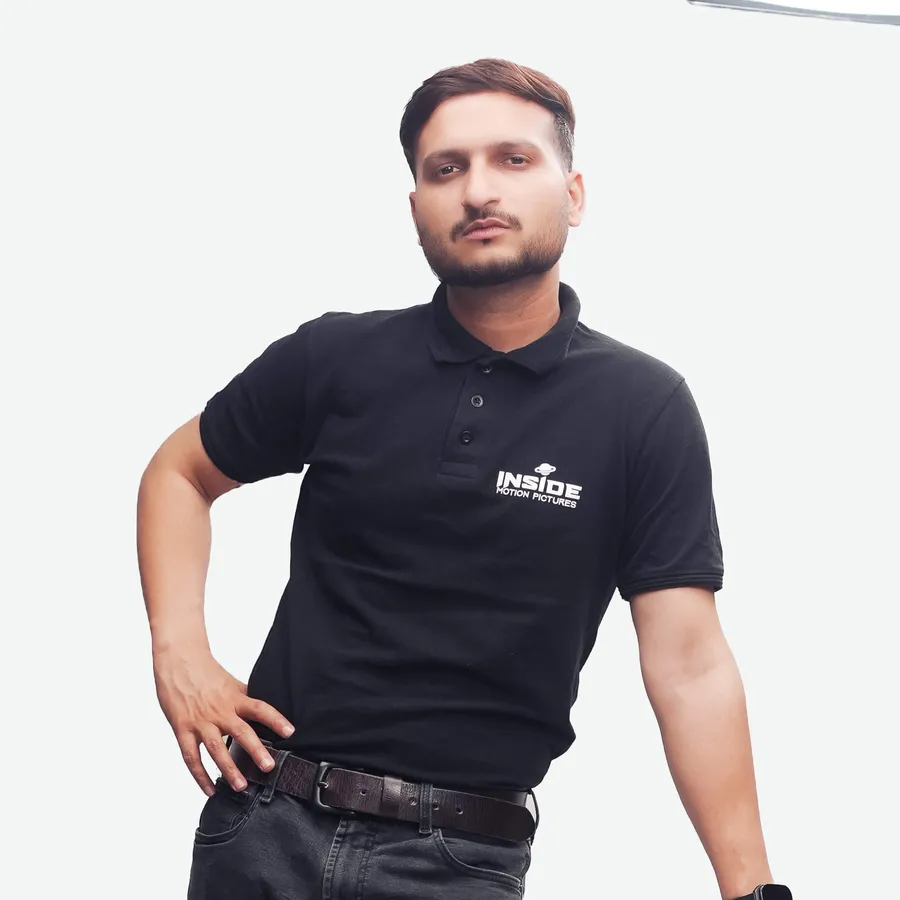
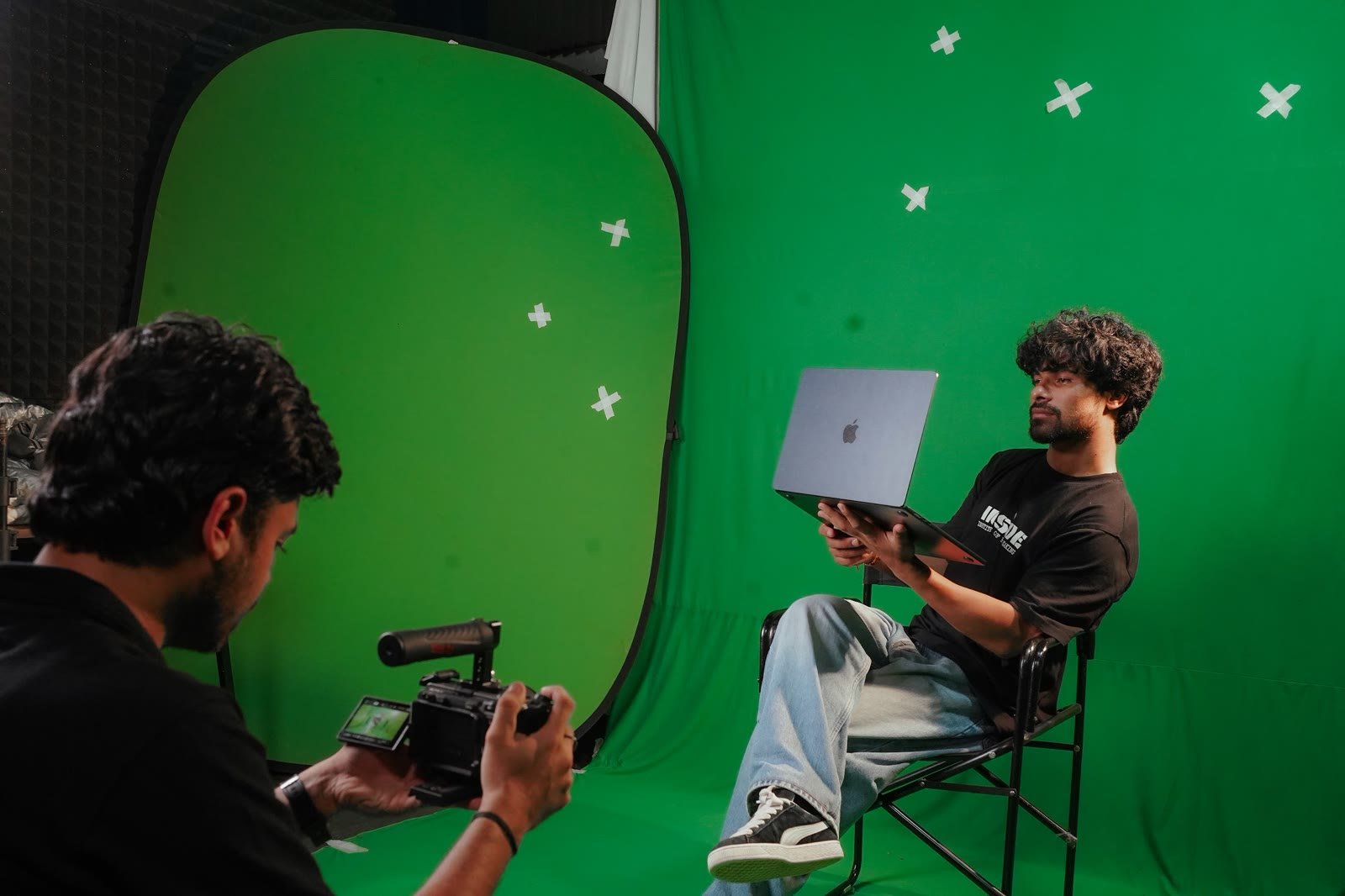
Made by our own people: this tutorial was directed, edited and sound-designed by our alumnus Rahul Suthar, now a working VFX artist, and shot by Pratham Ahuja and Aryan Choudhary. That is what learn-by-doing looks like.
The secret: shoot it to match
Software can make a person small. It can’t fix a person shot from the wrong angle. Before the green-screen shoot, look at your background plate (the desk, the street) and copy it:
- Camera height and angle. For a tiny person on a desk, the background camera looks down at the desk. So on the green screen, the camera must look down at the actor from the same angle.
- Light direction. If the desk lamp is on the left, the key light on the actor is on the left too.
- Floor contact. Shoot the feet. A tiny person whose feet are cut off will always float.
Step 1: Key the actor
Bring the green-screen clip into a composition. Draw a rough mask around the actor to throw away the studio, apply Keylight, switch to Screen Matte and refine it until the background is pure black and the actor pure white. Then remove the green edge with Advanced Spill Suppressor. If keying is new to you, start with our full guide: how to remove green screen in After Effects. Watch this part (from around 2:10).
Step 2: Place, scale and track
Put the keyed actor over the background and scale them down until they “feel” right next to real objects: a book, a mug, a phone. Real objects are your ruler. Then line up the feet exactly on the surface.
If the background camera moves, track the spot where the actor stands (mark the area to be tracked) and attach the actor to that track, so they stay glued to the desk as the camera moves. Watch this part (from around 4:30).
Step 3: Shadows make it real
This is the step that sells the shot. A tiny person without a shadow looks pasted on. A simple way, shown in the video:
- Duplicate the actor layer and turn it black.
- Squash and skew it so it falls on the surface, away from the light.
- Set its blending mode to Multiply and lower the opacity.
- Add Gaussian Blur, so the shadow is sharp near the feet and soft further away.
Now the opposite: the giant
The same tutorial also turns a person into a giant in front of a real building. The steps flip: shoot the actor from a low camera (looking up, the way we look up at something huge), key them, scale them up and place them in the street. Lower the layer’s opacity for a moment while you line it up, so you can see the street through them.
For the giant’s shadow on the street, the video builds it as a still image in Photoshop (using the brush tool, and Generative Fill to help), then brings it back into After Effects as its own layer. Watch the giant part (from around 7:00).
Want a second example? Our free lesson on the giant effect places a giant among friends at a cafe table, with a clean plate, light wrap and colour matching:
Practice challenge: your first tiny person
- Shoot a desk from above at a slight angle, on a tripod, for 10 seconds.
- Shoot a friend on a green cloth from the same angle, with light from the same side.
- Key, scale and place them next to a mug. Add the Multiply shadow.
- Show it to someone without telling them. If they ask “how?”, you did it.
- Shoot to match: camera angle, light direction and floor contact.
- Real objects are your ruler for scale.
- Shadows sell the shot.
- The giant is the same trick, flipped: low camera, scale up.
Questions people ask about the miniature effect
How do I make myself look small in a video?
Shoot yourself on a green screen from the same angle as your background, key out the green, scale yourself down next to real objects, and add a shadow. That is the whole trick.
Is the miniature effect the same as the tilt-shift effect?
No. Tilt-shift blurs the top and bottom of a real wide shot so a whole city looks like a toy model. The miniature effect in this tutorial makes one real person tiny inside a normal scene.
Can I do it without a green screen?
Yes, with rotoscoping (cutting the person out frame by frame, or with Roto Brush). It takes longer and hair is harder. A green screen, even a cheap cloth, saves hours.
Why does my tiny person look fake?
Almost always one of three things: the camera angle doesn’t match, the light comes from a different side, or there is no shadow. Fix those before touching any effect.
What software do I need for the miniature effect?
After Effects is enough: Keylight for the key, the tracker for a moving camera, and simple layers for the shadow. Photoshop helps for bigger shadows.
Learn VFX by making it
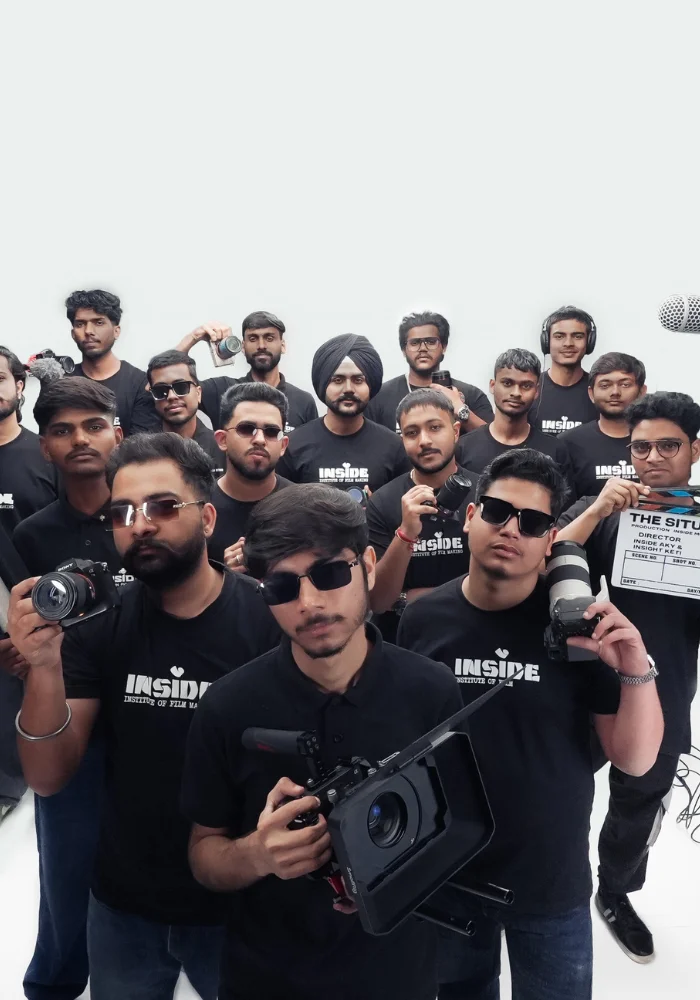
The people behind this tutorial learned the same way you can: by shooting, keying and finishing real shots, again and again. In the Pro VFX + AI course at Inside Film Institute, students work on our own green screen and on real music videos and films. If you love cinema and want to learn it by doing, start here:
We Love Cinema.
Rate this blog
Know someone who loves cinema? Send them this.
Comments
No comments yet. Be the first to share a thought.


